


Mobile trading is convenient. But the screen is small. When you scalp options, that becomes a trading problem.
You are watching the index for direction. The option chart for the premium. The option chain to change strikes. The order window. Stop-loss and target. Each switch feels small. But in a fast-moving market, they add up.
The problem is losing context
You see Nifty moving up and open a call option. The premium does not move the way you expected. So you switch back to Nifty. By the time you check, Nifty may have already changed direction.
That is what we wanted to solve with Mobile Scalper on FYERS.
https://www.youtube.com/watch?v=mxeN6i0_nvE
We launched Scalper earlier this year. It turns the chart into your order window, so you can execute and manage trades without leaving it.
Mobile Scalper takes that same idea and builds it out for the phone. The constraints are tighter here. Screen space is limited. Attention shifts faster. So we focused on the parts of the workflow that break down most on mobile, and brought them onto a single screen.
The first thing we wanted to solve was visibility. When you scalp options, two views matter the most. The index tells you the direction. The option chart tells you the price you are actually trading.
If you only watch Nifty, you may miss how the option premium is moving. If you only watch the option chart, you may lose context of what the index is doing. With Dual Chart mode in Mobile Scalper, you can see both together. You can keep Nifty on one chart and the option contract on the other.
Go back to the earlier example. You buy a call because Nifty is moving up. The premium does not respond the way you expected. On Dual Chart, you do not have to switch screens to find out why. You can see Nifty stalling on the same screen and exit before it reverses.
You are not trying to remember what you saw a few seconds ago. You are seeing both as the trade is forming.
The next problem is strike selection. In options, the strike you want to trade can change quickly. Normally, you go to the option chain, choose the strike, come back to the chart, and then continue.
In Mobile Scalper, the option chain is built into the strike selector. So you can tap the option chain icon, choose the strike, and continue from the same screen. It may look like a small thing. But when the market is moving fast, small things save time.
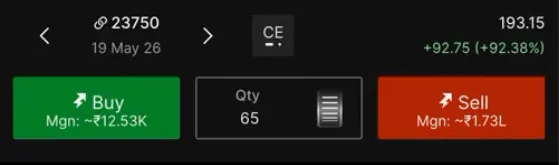
Order placement also stays close to the chart. You can set your quantity and see the required margin directly on the Buy and Sell buttons. So before placing the order, you know what margin is needed.
After entry, you can manage your stop-loss and target directly on the chart with a simple drag and drop. This is important because entry is only one part of the trade. Once you are in, risk has to be managed just as quickly.
The stop-loss and target work as OCO orders. So if one side is triggered, the other gets cancelled automatically.
Once the trade is running, you can minimise the order panel. The chart gets more space. Your position stays active. Your P&L keeps updating. While the trade is live, the chart is where you need to be. You can stay on it instead of pulling your attention back to a control panel.
That is the idea behind Mobile Scalper. The decisions you make while scalping should not be spread across five screens.
Less switching. More context. Faster action.
Mobile Scalper is now live on the FYERS app. Check it out and let us know what you think in the comments below.
