In scalping, every second counts. A few extra taps between seeing your setup and executing can mean the difference between catching your edge and watching it disappear.
Right now, most mobile trading apps force you to juggle between charts and order windows. You spot your entry on the chart, switch to the order screen, enter your quantity, confirm, and switch back. By then, price has moved 2-3 ticks.
That is why we built Scalper.
https://www.youtube.com/watch?v=A_X6D5vVlfQ

What is Scalper?
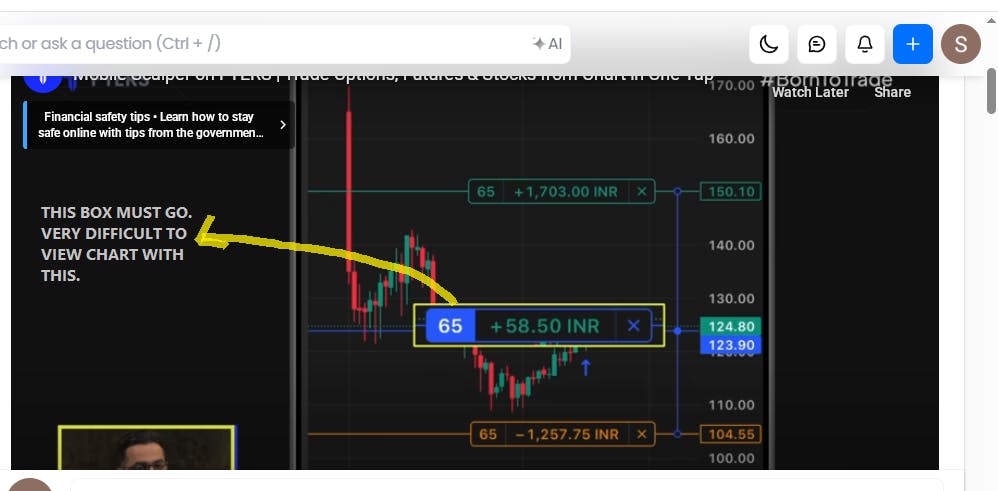
Scalper is a trading interface inside the FYERS App that removes the gap between analysis and execution. When you enable it, your chart becomes your order window.
Everything you need to execute and manage a trade lives in one place. You see price, you act, and the order goes through instantly. Your stop-loss and target are not buried in a menu. They are visible on the chart as draggable lines that move with your strategy.
We built Scalper for all segments, but fine-tuned it specifically for options traders because that is where the friction was worst. F&O traders constantly switch between the underlying index and individual option contracts. Each switch costs time and breaks your flow.
Scalper fixes this.
The F&O Problem
Let us talk about the specific problem options traders face.
When you trade options, you are constantly monitoring two things: the underlying index (Nifty, Bank Nifty) and the option contract itself (strike, expiry, premium).
In most apps, this means opening two separate charts and switching between them. You check Nifty’s movement, switch to your call option, check the premium, switch back to Nifty, decide to exit, switch to the option contract, place the exit order.
Every switch takes 2-3 seconds. In fast-moving markets, that delay is expensive.
Scalper solves this by giving you Spot, Call and Put in one single view. You stay on the index chart. When you need to see the option premium, you tap Call or Put and the chart switches instantly without losing context. When you need to exit, you do it right there from the index chart itself.
How It Works
Here is what your workflow looks like with Scalper enabled:
Before placing the trade
You open any chart (stock, index, futures, options). Toggle Scalper on. You will see a trading panel below your chart.
If you are trading options, you will see three tabs: Spot, Call, Put. Tap between them to switch charts instantly. The underlying remains the same. Only the contract changes.
The margins required are shown upfront on the Buy and Sell buttons based on your selected quantity. You know exactly what you need before you execute.
Placing the trade
Once you’ve got your setup in place, tap Buy or Sell to place the order instantly.
Managing the trade:
Now your position is live. In most apps, you would switch to a separate screen to add stop-loss and target. But here, you can drag your target and stop-loss on the chart. Both appear as horizontal lines overlaid on price.
These are OCO (One Cancels Other) orders. When your target hits, the stop-loss cancels automatically. When the stop-loss triggers, the target cancels. Your entry, P&L, and exit controls stay in sync with price action without any manual cleanup.
Monitoring and exiting:
Here is where Scalper becomes really powerful for options traders.
If you have a Nifty options position running, you can monitor and exit it directly from the Nifty 50 index chart. You do not need to leave the underlying chart at all.
You can see:
- Your P&L on the options position
- The price movement of the underlying index
- Exit controls for the position
All on one screen.
This is critical for scalpers who need to react to the underlying’s movement, not just the option premium. You stay on the index chart where the real price discovery is happening, but you manage your options position from there.
Preset Your Defaults
If you trade the same setups repeatedly, you can define your preferences once in Scalper Settings like quantity, target and stop-loss.
Scalper will apply them automatically every time you place a trade. You do not need to re-enter the same values on every order.
This is especially useful for intraday traders who execute the same strategy multiple times a day. One-time setup, infinite executions.
How We Built It
Most mobile trading apps are built like desktop platforms shrunk down to fit a smaller screen. They assume you have time to navigate menus and fill forms.
But mobile trading is fundamentally different. You are not sitting at a desk with three monitors. You are reacting to price in real-time, often on the move. The interface should match that urgency.
Scalper is built around three principles:
1. One-tap execution
We removed everything that slows you down. No multi-step order forms. No separate screens for risk management. Just tap, drag, done.
2. Everything in one view
You should never lose sight of price. That is why everything happens on the chart. Your stop-loss and target are visible as lines. Your positions show up on the same chart. You do not switch screens to manage trades.
3. Predefine the order preferences
Most traders execute the same setup repeatedly. Scalper lets you define it once and apply it everywhere. Your defaults become your workflow.
Example
Let us walk through a real example.
You are watching Bank Nifty. It is testing a key support level around 51,800. You want to enter a call option if it holds.
You toggle Scalper on. You switch to the Call tab to see the ATM strike premium. It is trading at ₹185.
Bank Nifty bounces off support. Your entry confirms. You tap Buy. Order executes instantly.
You drag your stop-loss to ₹165 (a 20-point risk). You drag your target to ₹225 (a 40-point reward). Both appear as lines on your chart.
Bank Nifty starts moving up. Your option premium hits ₹210. You drag the stop-loss up to ₹195 to lock in profit.
Volatility increases. You tighten the stop-loss to ₹205. All of this happens without leaving the chart.
Your target hits at ₹225. The position exits. The stop-loss cancels automatically.
You stay on the Bank Nifty chart the entire time. You react to the underlying’s price structure, not to menu navigation.
Why This Matters
Mobile trading is not a convenience feature anymore. It is how a large portion of active traders operate, especially intraday and options traders who need to react fast.
But most mobile apps still treat trading like a multi-step workflow: analyse, then navigate, then execute, then manage.
Scalper collapses that workflow into one screen. You analyse, execute, and manage without interruption. Your focus stays on price, not on interface navigation.
For scalpers and options traders, this is the difference between catching the move and chasing it.
For any specific questions you have on Scalper, refer to the FAQs here.
Try It Today
Scalper is now live on the FYERS App.
To get started:
- Open FYERS App
- Go to any chart (stock, index, futures, options)
- Toggle Scalper on
That’s it. You will see the trading panel below your chart.
If speed is at the core of your strategy, give Scalper a try. Execute at the speed of the market, not at the speed of your interface.
Let us know what you think.