In options trading, the decision starts with the chart and price movement.
Before entering a trade, you check the premium, how the option is moving, and whether the strike is worth trading.
When the market is moving quickly, switching between different screens to complete these checks can interrupt your trading flow.
We built Option Scalper to bring analysis, execution, and position management closer to the chart.
We have now enhanced Option Scalper on FYERS Web with multiple three-chart layouts, a cleaner interface, and collapsible headers and footers that give you more room to focus on the charts. We have also added Option Analytics and News, so you can get more context on the move without leaving Option Scalper.
Customise the three-chart layout
When you are scalping options, you may need to watch more than one chart.
You may want to track the Call, Put, and underlying together to compare the movement in the option premiums with the actual movement in the index or stock.
With Option Scalper, you can view all three charts in one place and choose from multiple layout options.
You can keep them side by side, stack them, or hide the chart you do not need. If you are focused only on the Call or Put, you can give that chart more space.
This gives you the flexibility to arrange the charts based on the trade you are analysing.
Get more space for the charts
The enhanced Option Scalper comes with a cleaner interface designed to keep the chart at the centre of the experience.
You can collapse the header and footer when you do not need them, giving you more space to view and analyse the charts.
You can expand them again whenever you need to access the available controls.
Open any option chart from the Option Chain
The strike you initially select may not always be the one you finally trade.
A nearby strike may have better movement, tighter spreads, or stronger activity. Checking another strike, however, should not take you away from the chart.
With the Option Chain available beside the chart, you can compare nearby strikes and open another option chart within the same workspace.
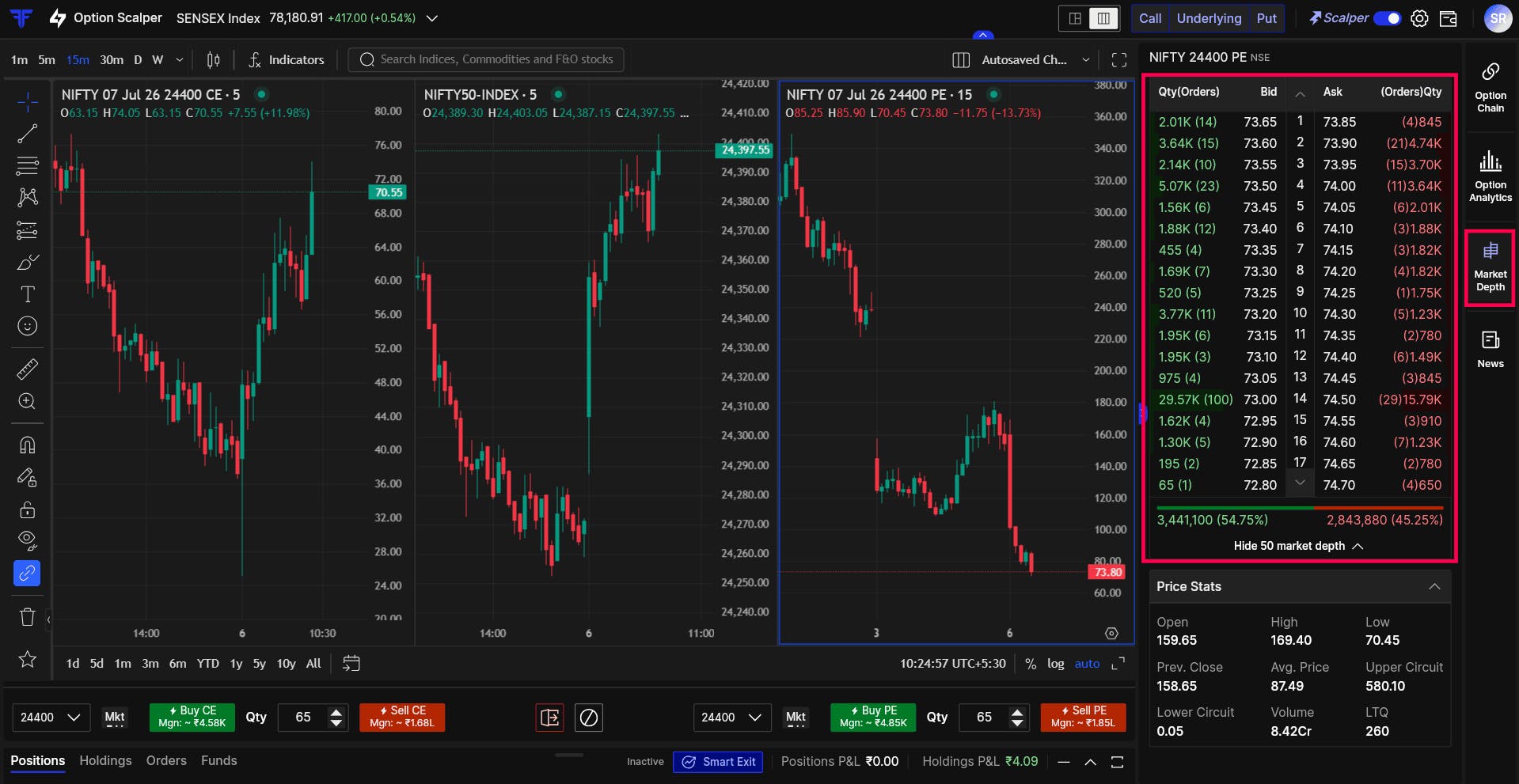
Check liquidity with 50 Market Depth
Before entering a trade, you may want to check whether the option has enough liquidity.
A wide bid-ask spread or limited quantity at the available prices can affect your entry and exit.
The 50-level Market Depth in Option Scalper lets you check buyers, sellers, available quantities, and the bid-ask spread for the selected option from the same screen.
View options data with Option Analytics
A move on the chart may look interesting, but price movement alone may not always provide the complete context.
You may also want to check whether activity is building around nearby strikes, how Open Interest is changing, or whether the options data supports the move you are tracking.
We have now added Option Analytics within Option Scalper, allowing you to review this information while keeping the chart visible.
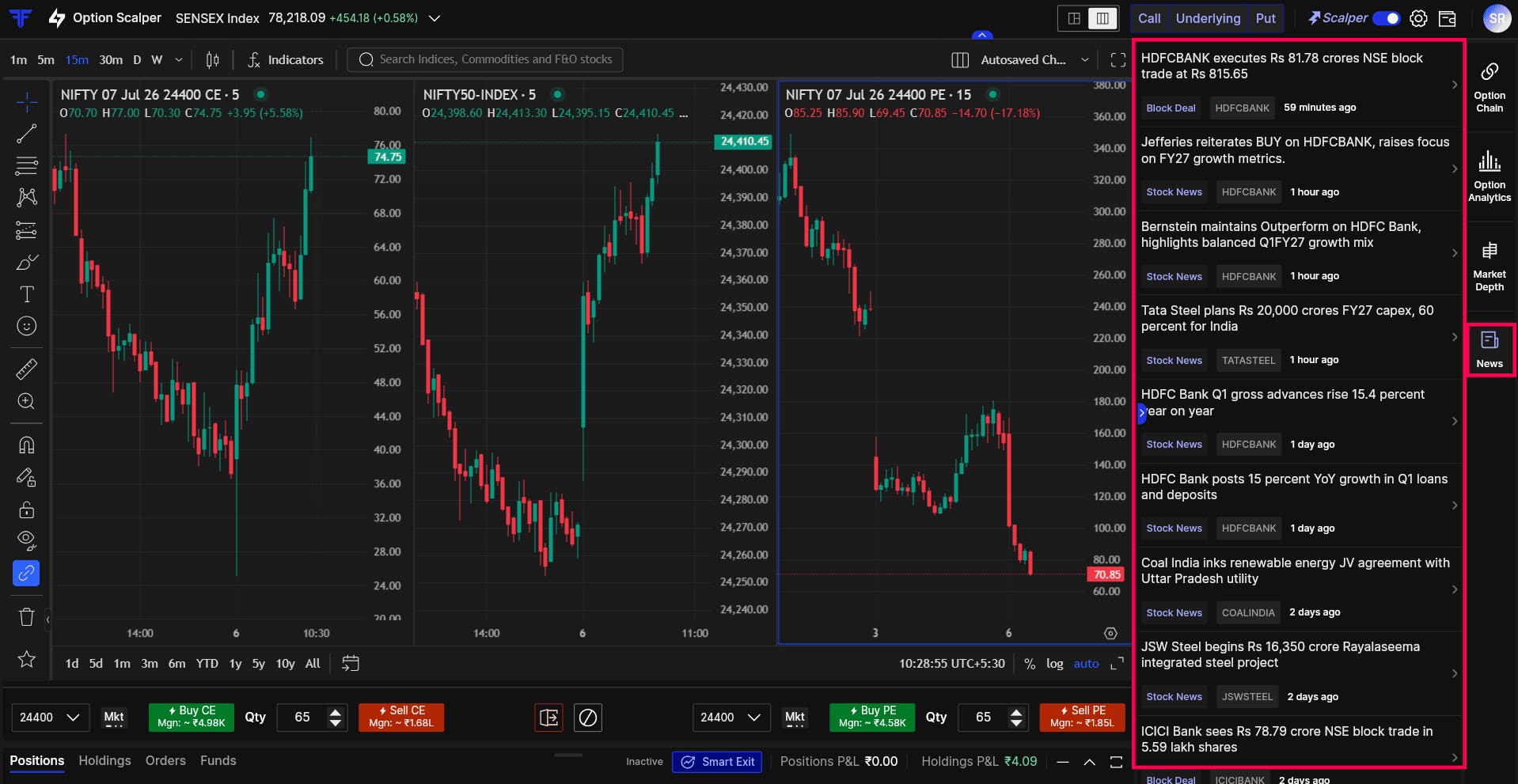
Check related News
A sudden spike, reversal, or sharp fall may be linked to a market, company, or economic update.
We have now added News within Option Scalper, so you can check relevant updates without moving away from the chart.
This helps you understand whether there is any important development behind the price movement before you decide to enter, manage, or exit the trade.
Place orders directly from the chart
When the price reaches your level, you should be able to place the order from where you are analysing the trade.
Option Scalper keeps the order panel within the same workspace. You can select the strike, enter the quantity, choose Buy or Sell, select between Market and Limit orders, and check the required margin before placing the order.
Set Stop-loss and Target from the chart
The entry is only one part of a scalp. The exit matters just as much.
With Option Scalper, you can place and adjust your Stop-loss and Target directly on the chart using drag-and-drop controls.
This helps you manage your exit levels from the same screen while the position is active.
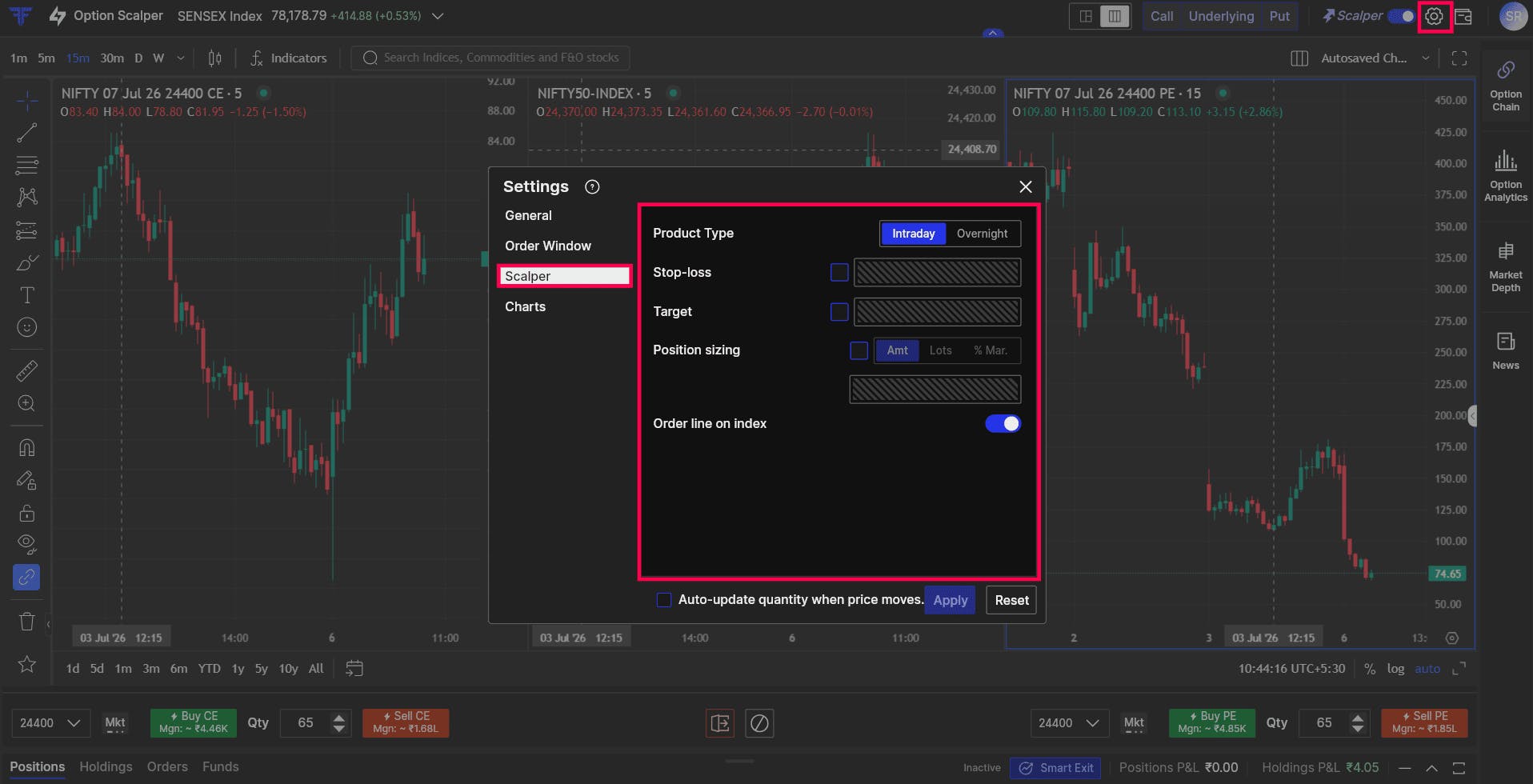
Keep your Scalper setup synced across Web and App
Scalping may not always be limited to one device.
You may analyse and trade from FYERS Web and later want the flexibility to continue from your phone.
Your Option Scalper settings on FYERS Web stay synced with Mobile Scalper on the FYERS App. Once your setup is configured, the same preferences are available when you switch between Web and App.
Built for a focused scalping setup
The enhanced Option Scalper brings more flexibility to your chart layout, gives you more room to analyse, and adds Option Analytics and News to the same trading workspace.
Option Scalper is available on FYERS Web.
Try the enhanced experience and let us know what you think in the comments.