


Technical indicators are always a core part of most trading setups. They help identify trends, momentum, and volatility to guide trading decisions.
But translating your conditions into timely action is where things often break down.
You may know exactly what you’re waiting for. For example, an RSI crossing a level, a moving average crossover, or a volatility expansion. The challenge is consistently tracking these conditions across multiple charts and acting the moment they occur.
This is where Indicator Triggers, within Automate workflows, come into play.
Automate workflows lets you define the exact conditions your strategy depends on. When they’re met, your setup runs instantly without any coding, so you don’t have to track charts continuously or risk missing the move.
Indicator Triggers are triggers you set within Automate workflows to track specific indicator signals.When those conditions are met, Automate picks it up instantly so you can act or run your setup at the right moment.
Indicator-based triggers can be configured in two ways, depending on how the strategy is designed. Each type helps capture different kinds of market signals and is suited for specific trading approaches.
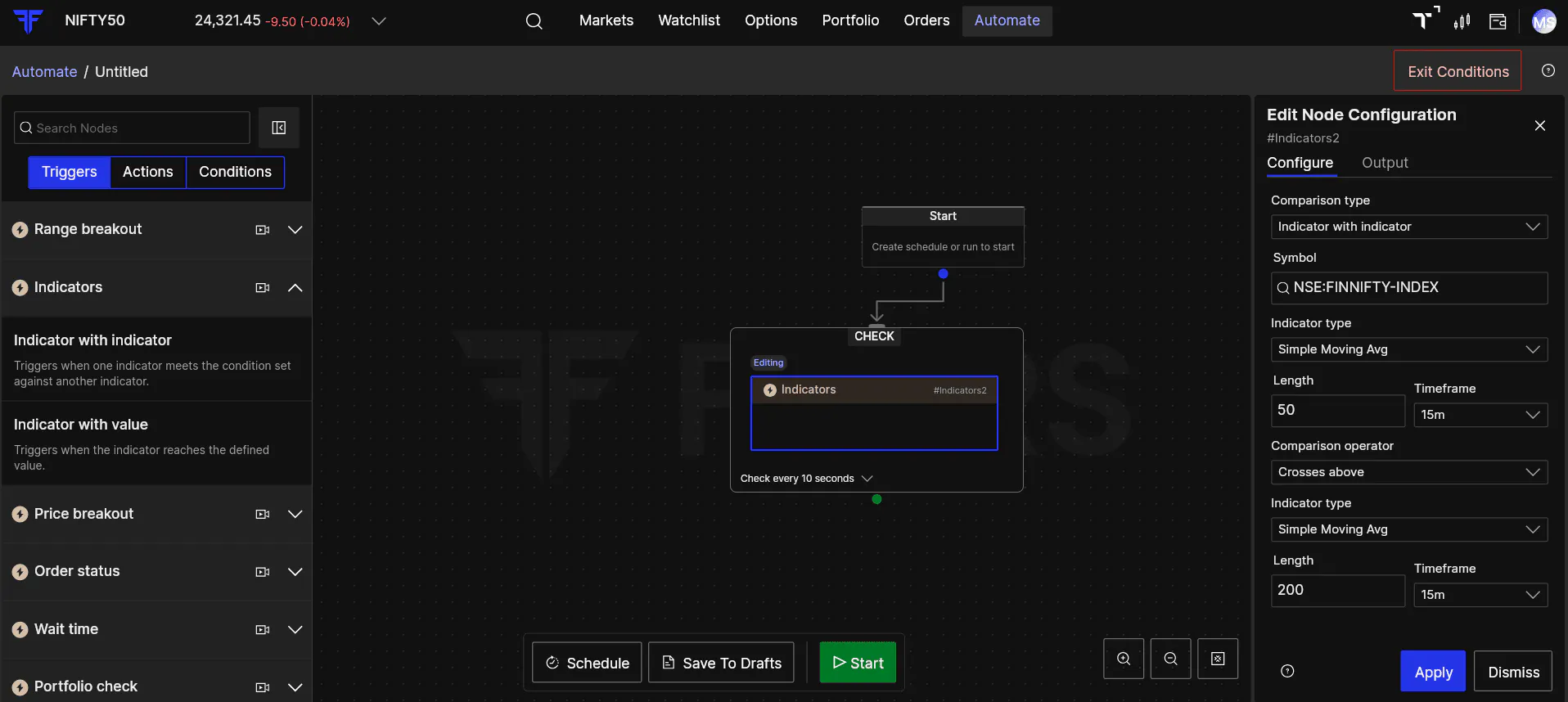
This trigger lets you compare one indicator directly with another.
Instead of checking an indicator against a fixed value, you’re defining a relationship between two indicators. The trigger activates when that relationship meets your condition.
For example, comparing a short-term moving average with a long-term moving average helps identify crossovers that signal potential trend changes. These setups are widely used in strategies like golden crossovers or death crossovers.
This configuration is dynamic because both indicator values keep changing with market movement. The trigger activates based on how one indicator moves relative to the other.
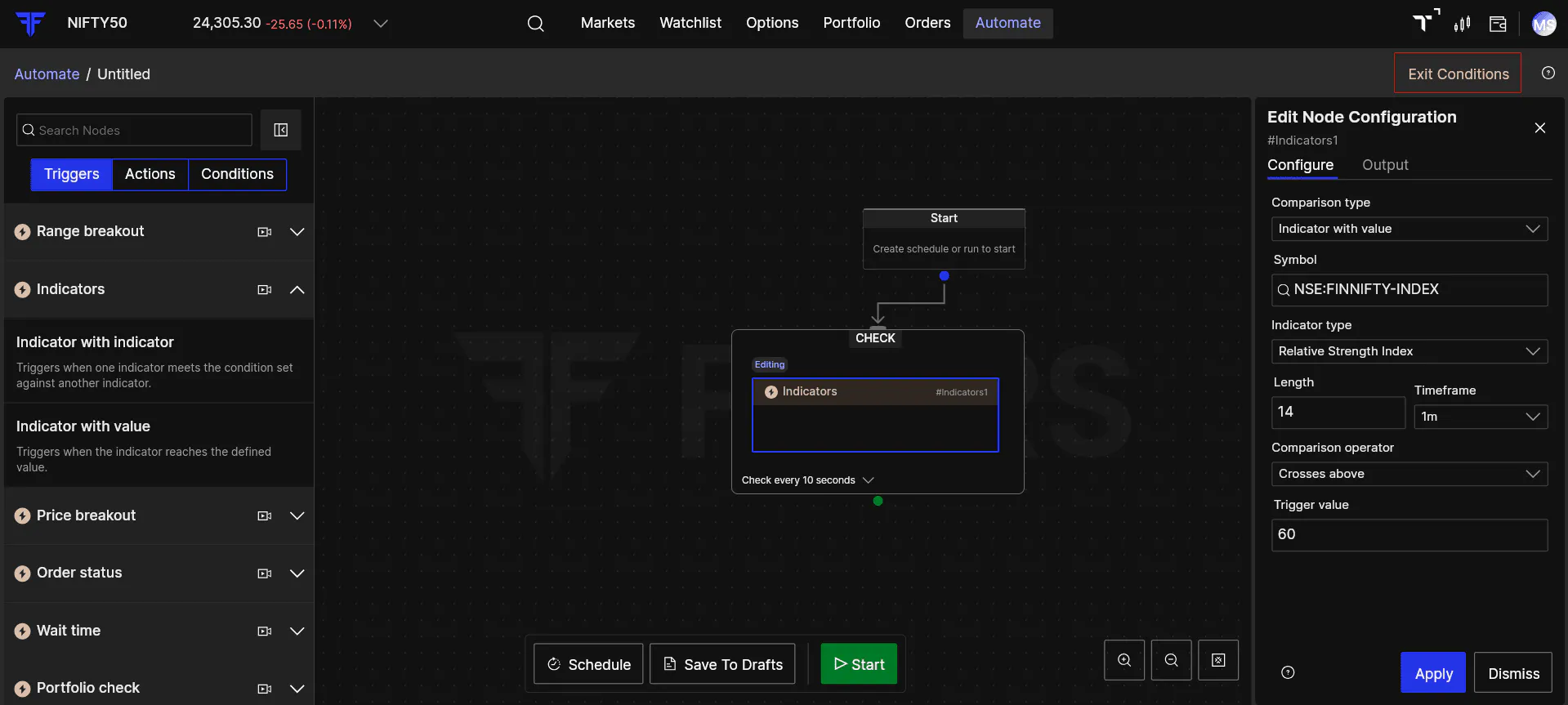
This type compares an indicator with a predefined value.
Unlike indicator with indicator comparison, this setup uses a fixed reference point. The trigger activates when the indicator reaches or crosses the defined level, depending on the condition selected.
For example, When RSI crosses above 60, it signals strengthening momentum in the market. You can set this as an Indicator with Value trigger and combine it with a condition like sufficient funds. Once both are met, Automate can place a buy order or notify you instantly.
You can choose from 20 indicators to set up triggers based on how you already read the market.
These include:
Average Directional Movement Index (ADX)
Average Directional Rating (ADR)
Simple Moving Average (SMA)
Exponential Moving Average (EMA)
Weighted Moving Average (WMA)
Relative Strength Index (RSI)
Rate of Change (ROC)
Momentum
Average True Range (ATR)
True Range
Standard Deviation
Bollinger Bands
Chaikin AD Oscillator
Money Flow Index (MFI)
Stochastic
Stochastic RSI
Linear Regression Angle
Linear Regression Slope
Directional Index
MACD
Let's see an example where we can set up a workflow to trade in long straddle with ADX indicator.
Start by adding an Indicator Trigger for Nifty using the ADX indicator. Set your preferred timeframe and configure the trigger when ADX crosses above 30, this is an example of using an indicator with a value. Once the condition is triggered, add two Place Order actions: one to buy 1 lot of Nifty ATM Call and another to buy 1 lot of Nifty ATM Put, both for the current expiry.
For exits, add a Portfolio Check to monitor total P&L. If the P&L reaches ₹20,000 or falls to -₹10,000, the workflow automatically stops and squares off all open positions. That completes the full workflow.
Similarly, you can also create the above workflow using two indicators together, like EMA 50 crossing above EMA 200 on the daily timeframe.
Instead of tracking all this manually, Automate monitors everything in the background and acts only when your full setup is met.
To understand Triggers, Conditions, and Actions in detail, watch this complete walkthrough.
Many of you would be using indicators and strategies on external platforms like TradingView and Chartink. These platforms allow you to send alerts whenever specific indicator conditions are met.
With Webhook Triggers, you no longer need to rebuild your entire strategy inside Automate. Simply connect your external platform alerts directly to your workflow.
The moment your indicator alert is triggered on TradingView or Chartink, Automate instantly receives the signal and executes your strategy automatically.
Getting started is simple:
Add a Webhook Trigger block
Select the webhook type-
a. Choose TradingView Webhook for TradingView
b. Choose Chartink Webhook for Chartink
c. Or use Simple Webhook for any other platform
Paste the generated URL into your external platform
That’s it.
Whether you use built-in indicators in Automate or signals from external platforms, you can now manage everything in one workflow. Give it a try on FYERS Automate and build your first indicator-based trigger today. Let us know your experience in the comments.
